Getting Started on UCTalent (For HR/Headhunter/Employer)
Step 1: Sign-in and Registration (Job Poster Sign-in)
When accessing UCTalent (e.g., app.uctalent.io), employers will see the Sign in screen with multiple options:
- Email Sign-in: Enter your email address (e.g., hr.manager@company.com) and click the arrow to proceed.
📝 Email Verification Note: UCTalent uses a Magic Link (passwordless link) or requires a traditional password. You will receive an email containing a secure link to verify your email and complete the sign-in process.
- Quick Sign-in/Registration via Social Accounts: Use Google, GitHub, Discord, Telegram, or X (Twitter).
- Web3 Sign-in:
- Use Passkey.
- Connect a Wallet (Connect a crypto wallet).

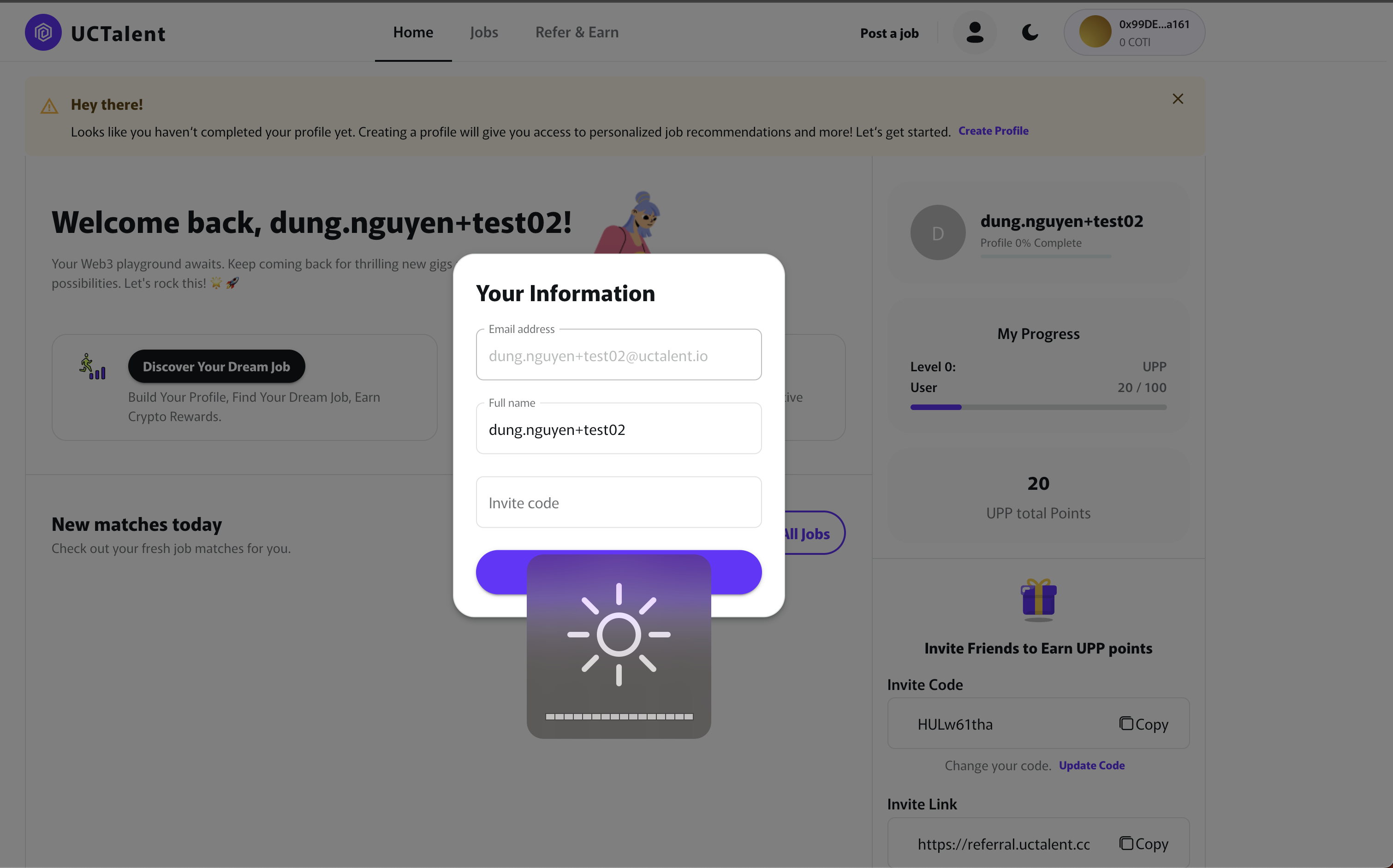
After signing in or registering, the system may ask you to fill in some basic information:
- Confirm your Email and Full name.
- This is also where you can enter an Invite code if available.
Step 2: Onboarding and Profile Building
The system will guide you through the Onboarding process to set up your recruitment profile:
2.1. Provide Job Preference Information
- You may be asked to provide information about your Role (e.g., Recruiter, HR Manager, Headhunter), Company, and details related to your recruitment needs.
- Click the CONTINUE button to proceed.


2.2. Complete Personal Profile (Recruiter/Employer Profile)
After completing Onboarding, you will land on your Profile page. You need to complete all the following sections (click the pencil $\text{()}$ icon to edit):
- Basic Information: Current position, Role, and Specialty .
- Headline: A summary line of your role or experience, e.g., Talent Acquisition Specialist focused on Tech & Engineering.
- Experiences & Education: Click to add detailed work history and academic qualifications.
💡 Tip: A complete profile helps build credibility and professionalism when interacting with candidates and utilizing advanced platform features.
Step 3: Job Posting
To create a job listing, follow these steps:
3.1. Access the Job Posting Page
- Navigate to the For Business section on the navigation bar, then select Post job (or click the Post job button directly).
3.2. Fill in Basic Information
- Job Title: (e.g., Business Development Manager)
- Speciality: (e.g., Business Analyst)
- Level of Experience: (e.g., 0-1 year)
- Management Level: (e.g., 6-10 people)
- Company Name: (e.g., UCTalent)
- Job Type: (e.g., Full Time)
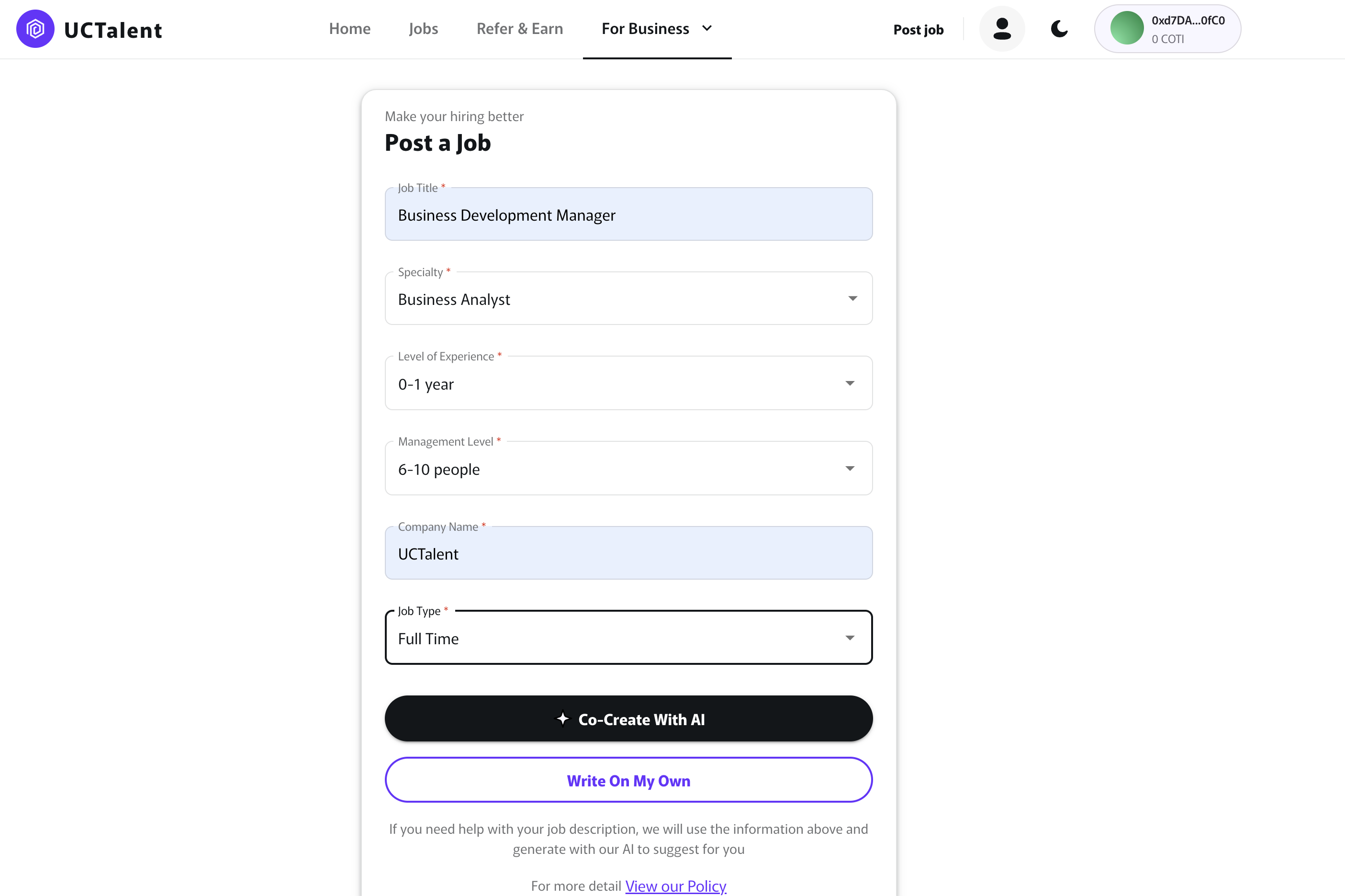
3.3. Write the Job Description
You have two options:
- Co-Create With AI: The system will use the basic information to automatically generate a draft Job Description.
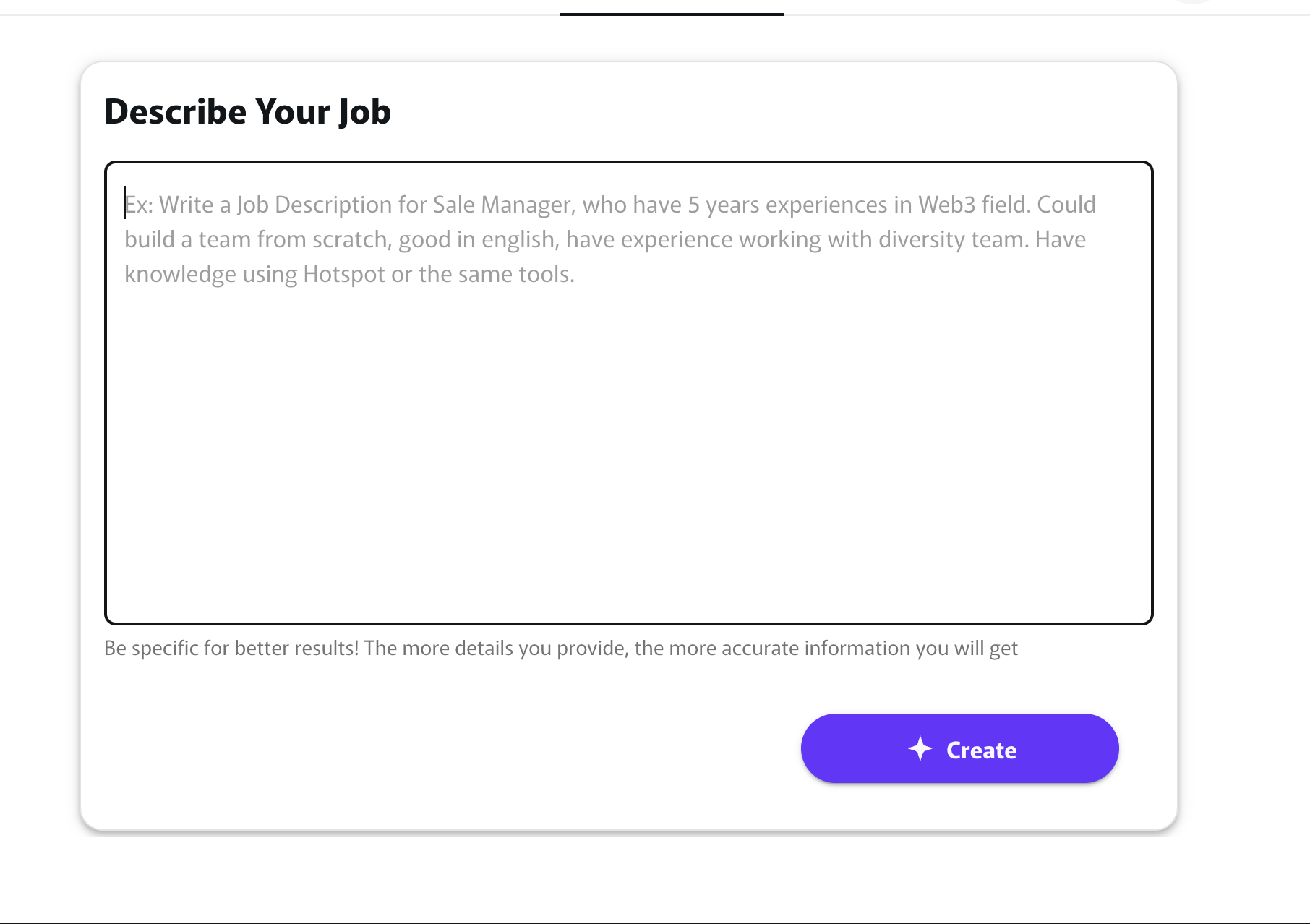
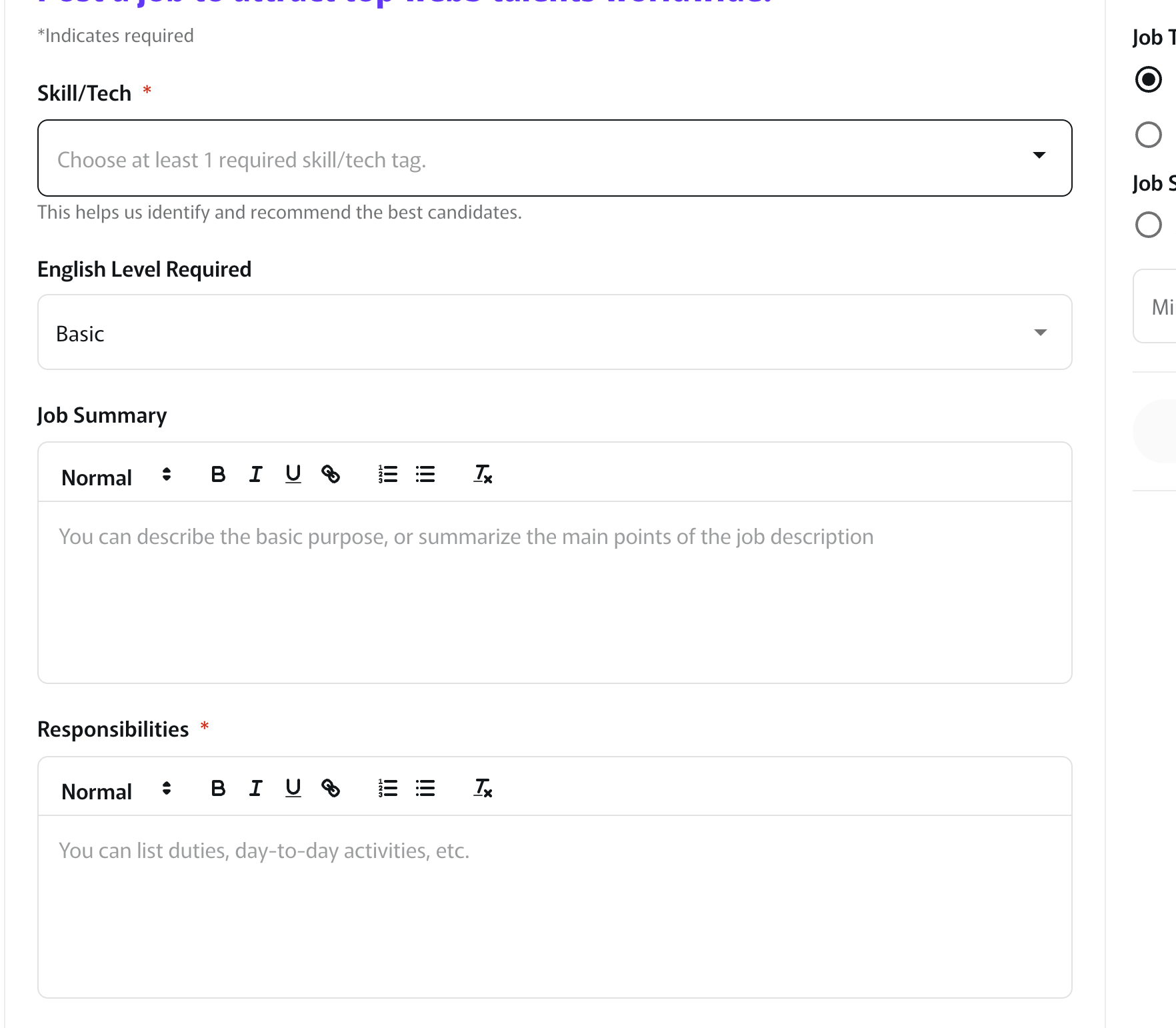
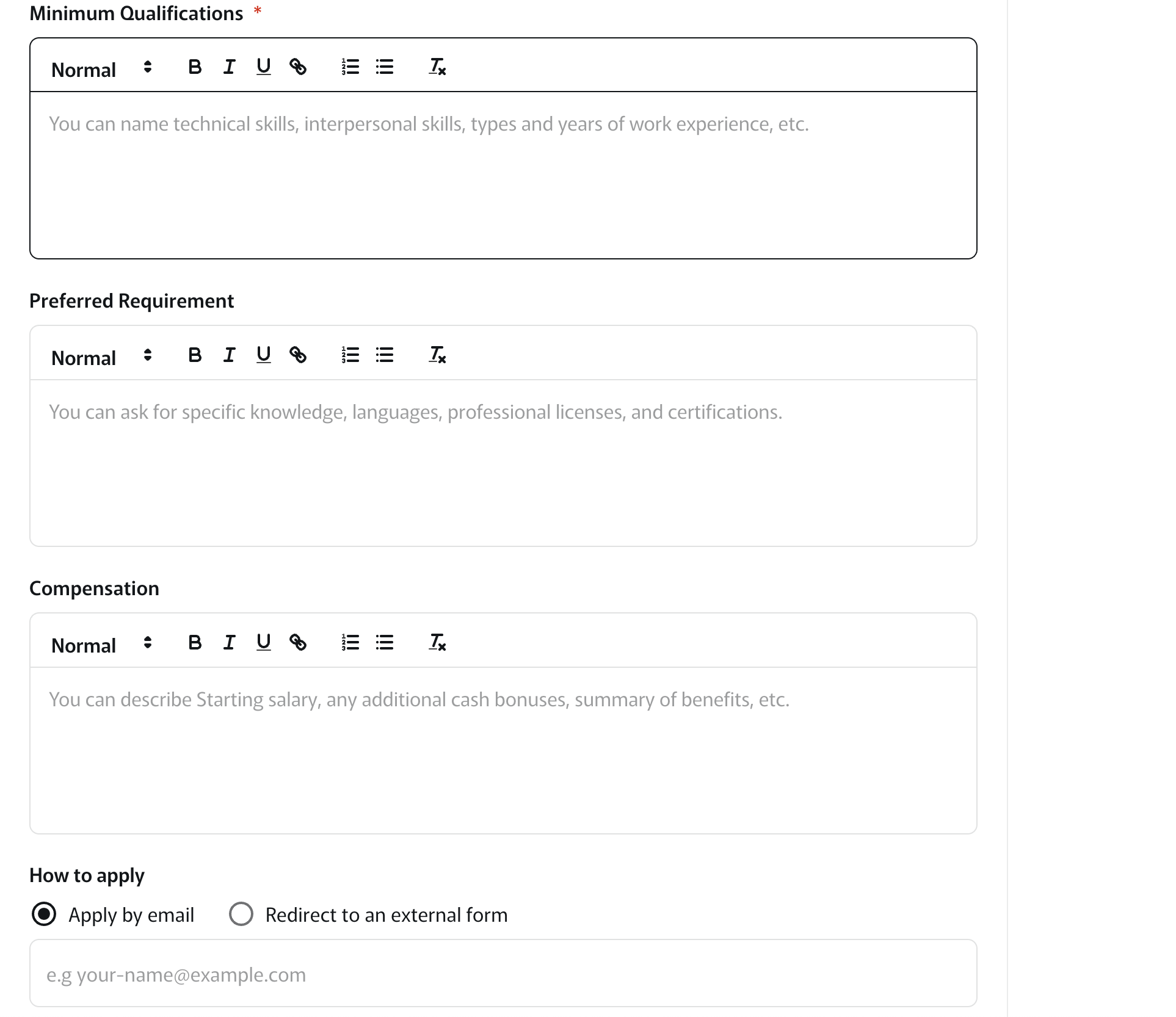
- Write On My Own: You will manually fill in the following fields:
- Skill/Tech *Chọn ít nhất 1 thẻ kỹ năng/công nghệ bắt buộc.
- English Level RequiredChọn trình độ (Ví dụ: Basic).
- Job SummaryMô tả mục đích cơ bản hoặc tóm tắt các ý chính của công việc.
- Responsibilities *Liệt kê các nhiệm vụ, hoạt động hàng ngày, v.v.
- Minimum Qualifications *Kỹ năng kỹ thuật, giao tiếp, loại hình và số năm kinh nghiệm.
- Preferred RequirementKiến thức, ngôn ngữ, giấy phép và chứng chỉ chuyên môn.
- CompensationMức lương khởi điểm, tiền thưởng, và tóm tắt các lợi ích (benefit)
-
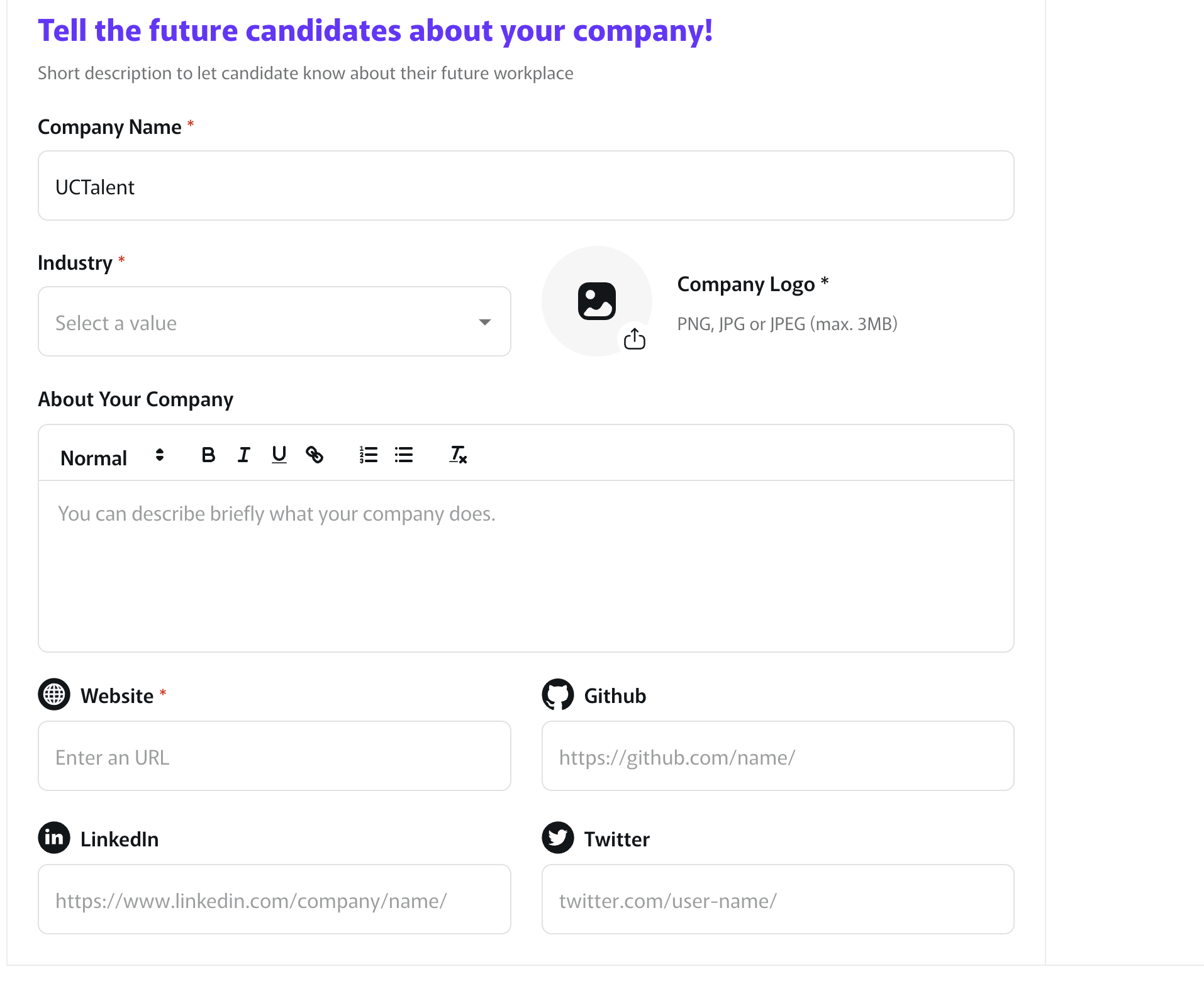
3.4. Provide Company Information
- Company Name: (e.g., UCTalent)
- Industry *
- Company Logo * (PNG, JPG or JPEG, max. 3MB)
- About Your Company: Describe briefly what your company does.
- Website * and social media links (Github, LinkedIn, Twitter).
3.5. Preview and Post
- Review all information.
- Click the Post button to submit the job listing.
⏳ Note: After posting, your job listing will need to await review for approximately 15-30 minutes before it is displayed on the UCTalent Job Board.
Step 4: Job Board and ATS Review
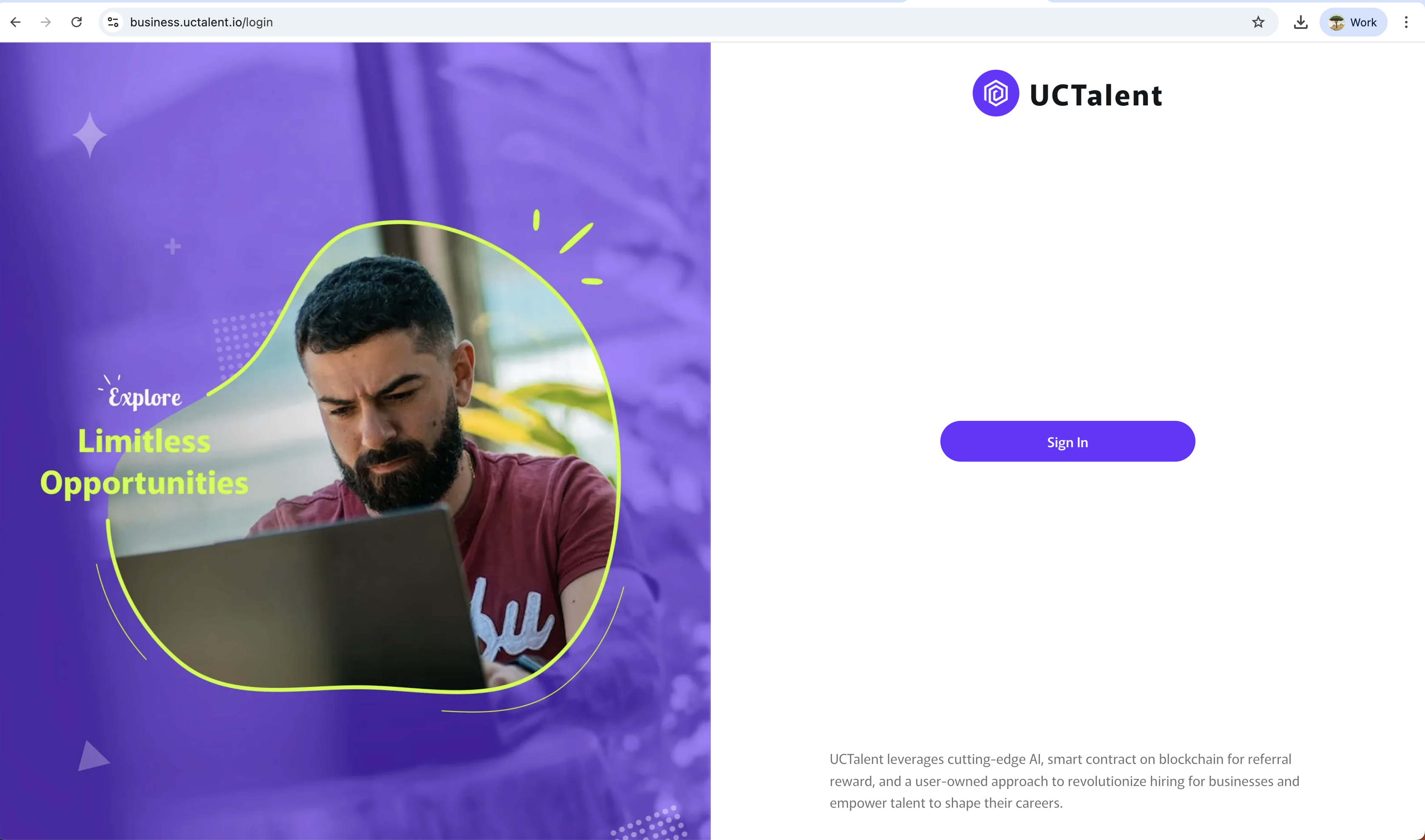
After logging into the business management page (business.uctalent.io/login) with the account that posted the job, navigate to the Jobs page to track all your posted positions.
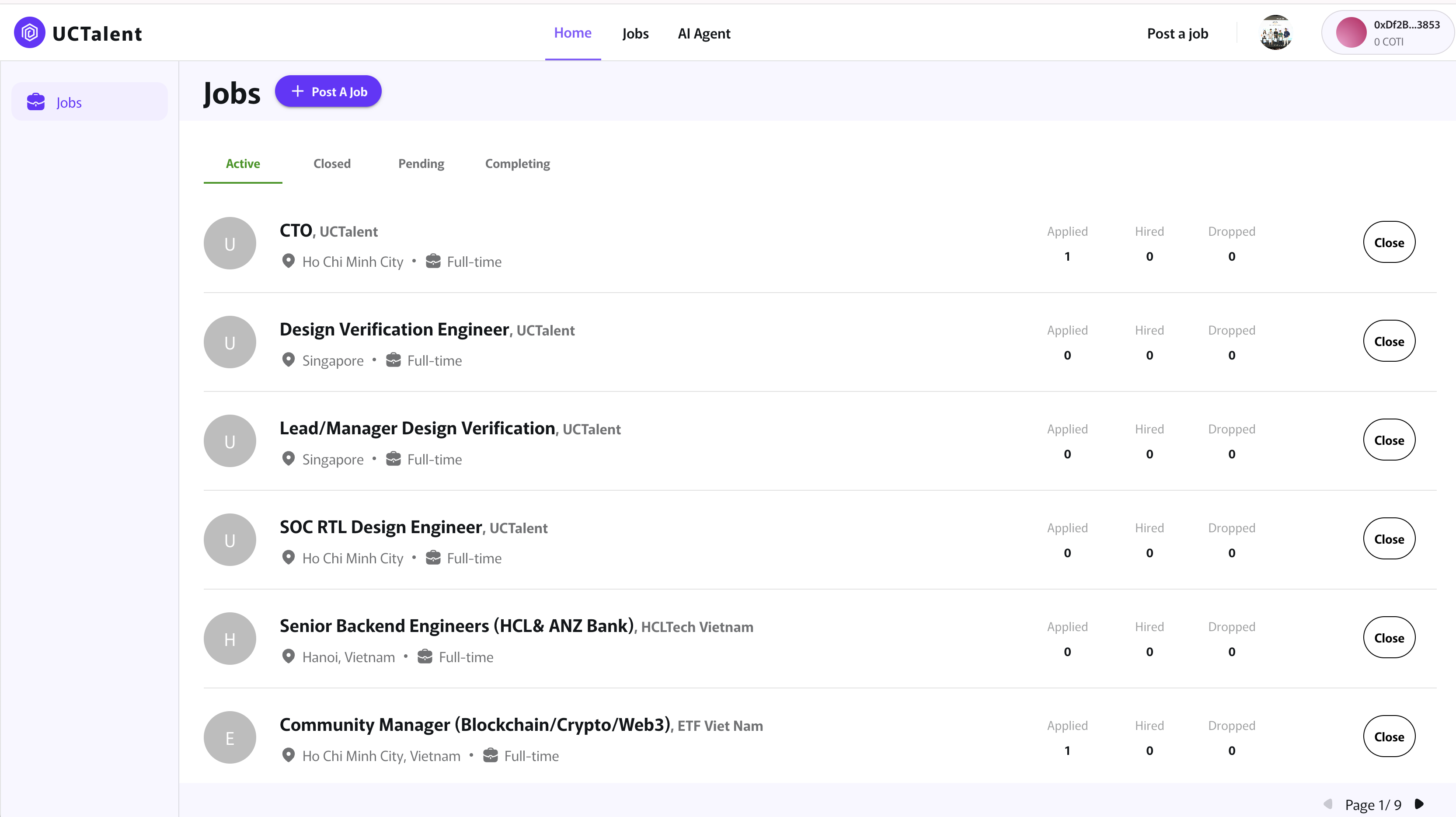
4.1. Tracking Job Status (Job Status Tabs)
On the Jobs page, you can manage your job listings through the status tabs:
- Pending: The job listing has just been posted and is in the process of review (you noted this typically takes 15-30 minutes) before being displayed publicly.
- Active: Job listings that have been approved and are currently public on the Job Board, actively receiving candidates.
- Closed: Positions that have been taken down or successfully filled, and are no longer accepting applications.
- Completing: (Specific internal status, may indicate the final stage before being moved to Closed).
4.2. Applicant Tracking System (ATS) Management
Under the Active tab, you will see a list of your posted jobs, along with the counts for candidates who have Applied, been Hired, and been Dropped.
When you click on a specific position (e.g., CTO), you will be taken to the ATS (Applicant Tracking System) interface to manage the recruitment pipeline by stages:
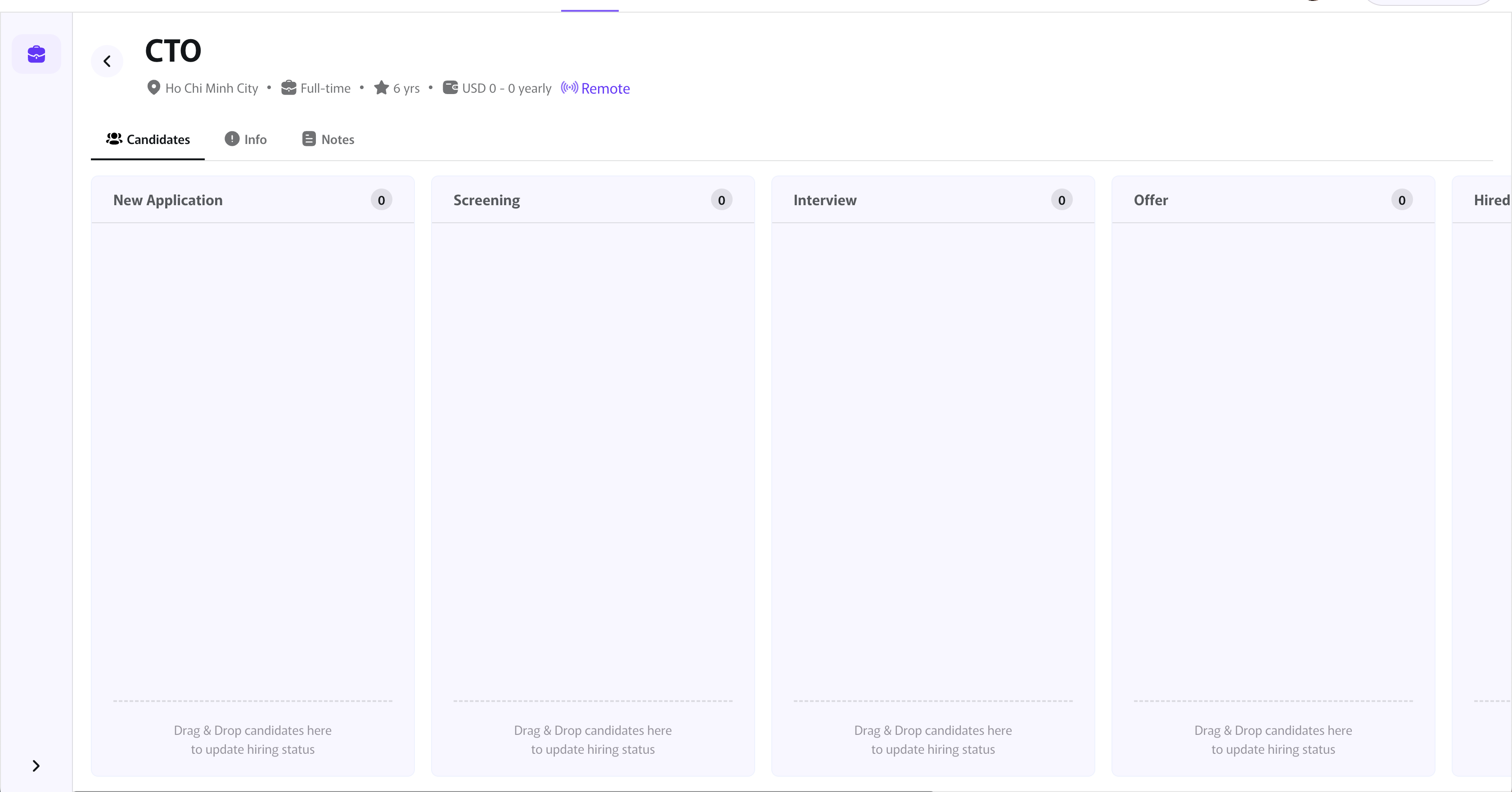
You can easily manage the process by Drag & Dropping candidate profiles between these status columns to update the hiring status.
- New Application: The candidate has successfully submitted their application.
- Screening: The profile is being screened and reviewed (CV Review).
- Interview: The candidate has been invited for an interview.
- Offer: The candidate has received a Job Offer.
Step 5: CV Review
When a candidate applies (Status New Application ), you can click on their profile to view:
- Detailed Profile: View the information filled in their Profile (Basic Information, Headline, Skills, Experiences & Education).
- CV/Resume File: View or download the CV/Resume file (supports .doc, .docx, .pdf) the candidate has attached.
📧 Notification: UCTalent will send an email notification every time a new candidate applies, ensuring you don't miss potential hires.